
If you mod Bethesda games, you will meet NIF files sooner or later. They carry meshes, textures, collision data and animation links for characters, weapons and buildings, and choosing the right tool saves hours of trial and error. For quick inspection, many modders start with nifskope, a dedicated viewer and editor built for the NIF format, while others open the same files in Blender, a full 3D suite, through a NIF add-on. Neither tool is wrong, but they are built for different jobs.
The simplest way to think about the difference is scale. NifSkope is a specialist: it opens one format, shows its structure clearly, and lets you change small things quickly. Blender is a generalist: it can model, sculpt, rig, animate and render almost anything, and NIF support is only one small part of what it does. Use the specialist when the job is narrow, and the generalist when the job is large or creative.
What NifSkope Is Built For
NifSkope was designed around the way Bethesda games store 3D data. When you open a file, you see its block tree: mesh nodes, material properties, texture paths, collision shapes and bone links, laid out so you can inspect one piece at a time. That view is invaluable when a mod is broken. If a weapon appears invisible or a texture points to the wrong folder, NifSkope lets you find the faulty block without loading a whole scene or rebuilding a model. You can preview the mesh, toggle nodes on and off, edit values directly, and save a corrected file in minutes.
What Blender Brings to NIF Work
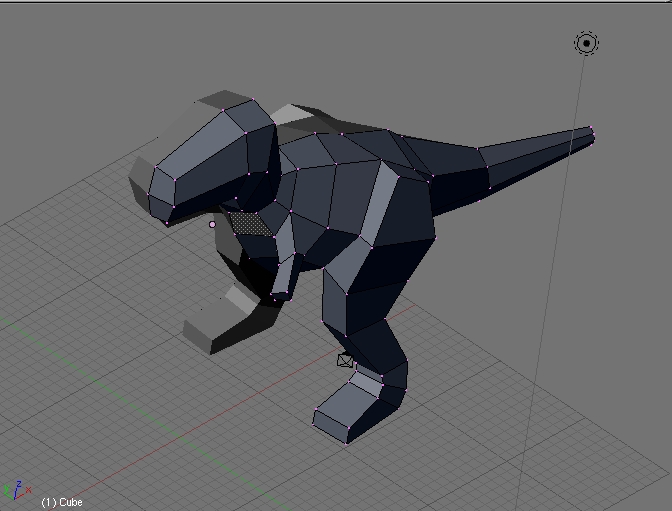
Blender approaches the same files from the opposite direction. With a NIF import add-on, you can bring a mesh into a complete modelling environment, reshape it, paint weights, build a new skeleton, or combine parts from several models into something new. You can also create original assets from scratch and export them for use in a game, which NifSkope cannot do. Blender’s viewport, modifiers and animation timeline give you creative control a format viewer was never meant to offer. The trade-off is complexity: import and export depend on add-on support for your game and Blender version, and scale, bone orientation and materials need careful checking.
When to Use NifSkope
Reach for NifSkope first when your task is inspection, diagnosis or a small edit. It is the right choice for checking whether a mesh, texture or collision shape is present, for fixing a texture path, renaming a node, or copying a block from one file to another. It is also the fastest way to compare two versions of the same asset and confirm a download is complete. Because it loads only the file itself, it starts quickly, uses little memory, and keeps your attention on the data rather than on scene setup.
When to Use Blender Instead
Choose Blender when the work is creative or structural. If you need to remodel a helmet, build a new creature, fix broken topology, repaint skin weights, or animate a character, Blender’s toolset is essential. It is also the better choice when an asset must be rebuilt for a different body type or art style, or when several assets must be merged and re-exported as a set. In those cases the extra setup time pays for itself, because reshaping geometry in a viewer would be slow and imprecise. Test the exported file in game early, and keep a backup of the original.
A Practical Workflow That Uses Both
Most experienced modders do not choose one tool and abandon the other; they use both in sequence. A typical workflow starts in NifSkope, where the original file is inspected and its structure and texture paths are understood. The mesh then moves to Blender for the real modelling work, whether that is a remodel, a re-rig or a new texture layout. Finally, the exported file returns to NifSkope for a last check: are the nodes correct, are the textures linked, does the collision still match the shape? You can learn more at nifskope.com, and that final inspection catches many small errors before players ever see them.
